

ChatGPT Web
Connect Walter Writes AI to ChatGPT Web via MCP for text humanization and AI detection directly in chat.
Connect Walter Writes AI to ChatGPT Web for text humanization and AI detection directly in chat. See the Overview for full feature details and examples.
Note on ChatGPT support
Full support for MCP client access is currently in beta in ChatGPT. Right now, it is available in Developer mode for eligible Pro and Plus accounts on the web.
While this feature is in beta, use explicit and precise prompts whenever possible.
- Mention the Walter Writes MCP connector directly.
- Specify the exact tool/action to use.
- Indicate which fields to pull and how to sort results.
- Explicitly ask ChatGPT not to use web search.
Better results usually come from structured prompts, for example:
"Using the Walter Writes MCP connector, run the text humanization action on the draft below, then run the AI detection action on the final version. Return readability score, AI score, and a short change summary. Do not use web search."
For the latest availability and limits, check the official ChatGPT Developer mode documentation.
Setup guide
Follow these steps to add the Walter Writes MCP server to ChatGPT Web:
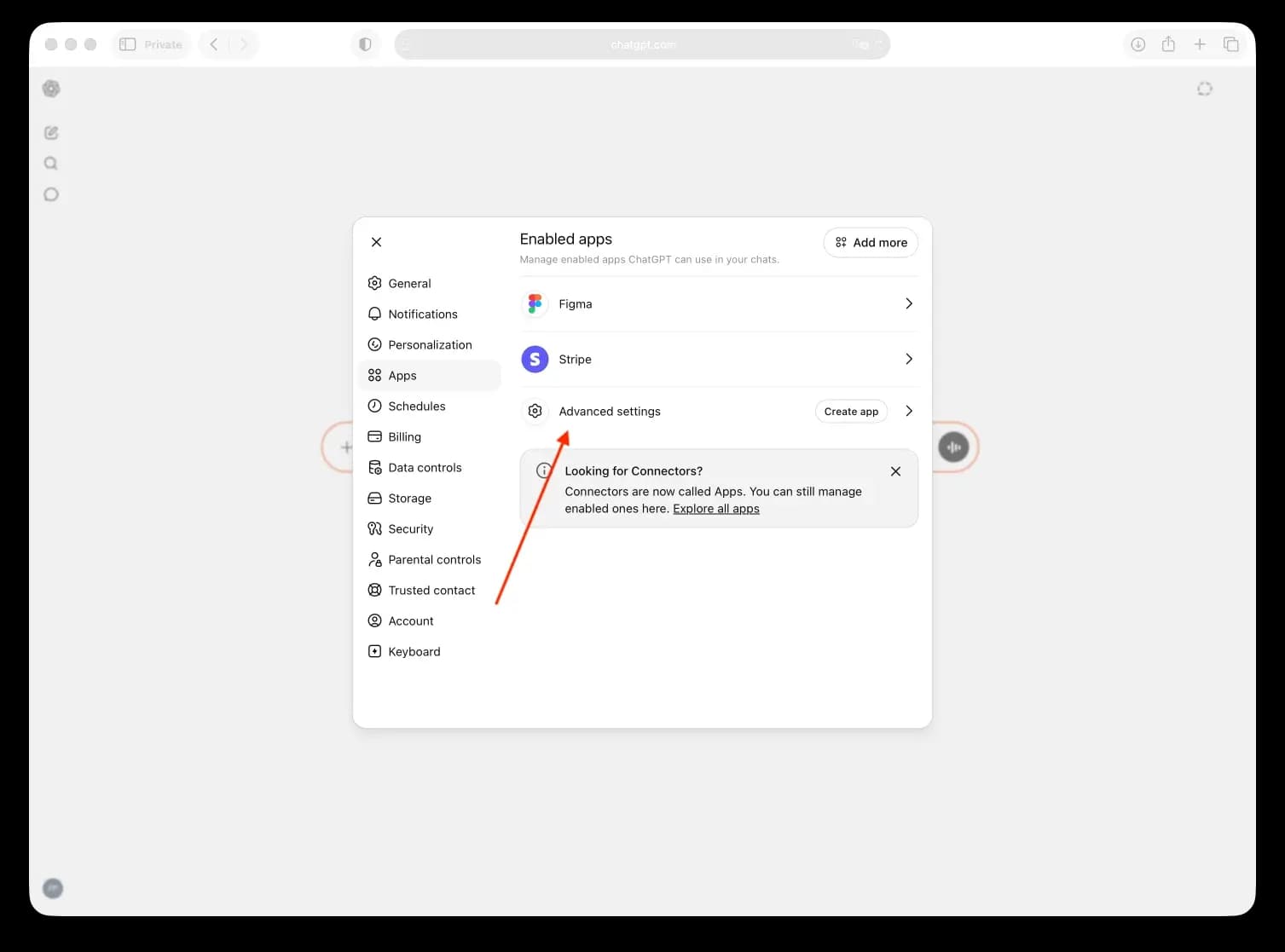
- Open Settings > Apps > Advanced settings.
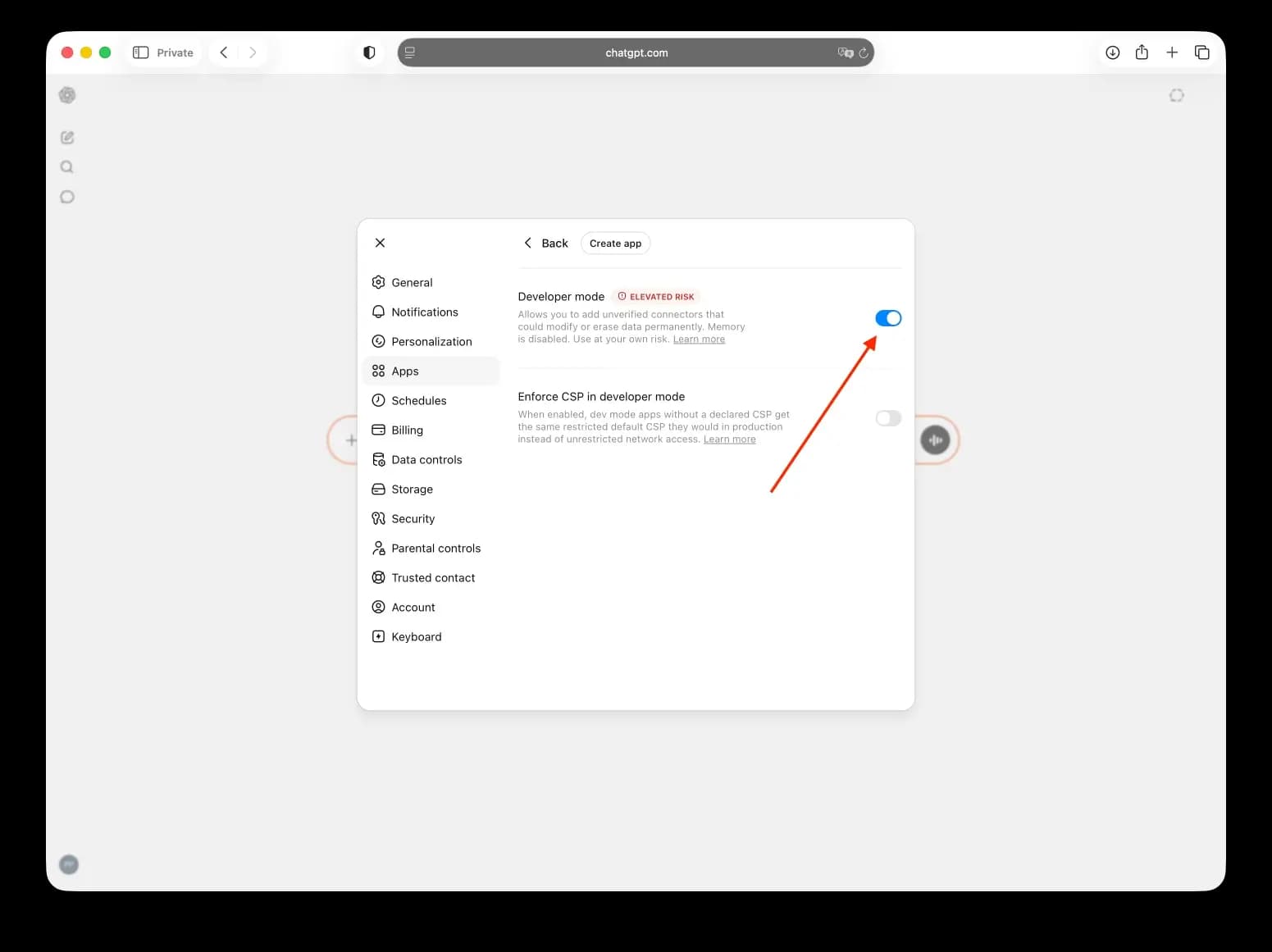
- Enable Developer mode.
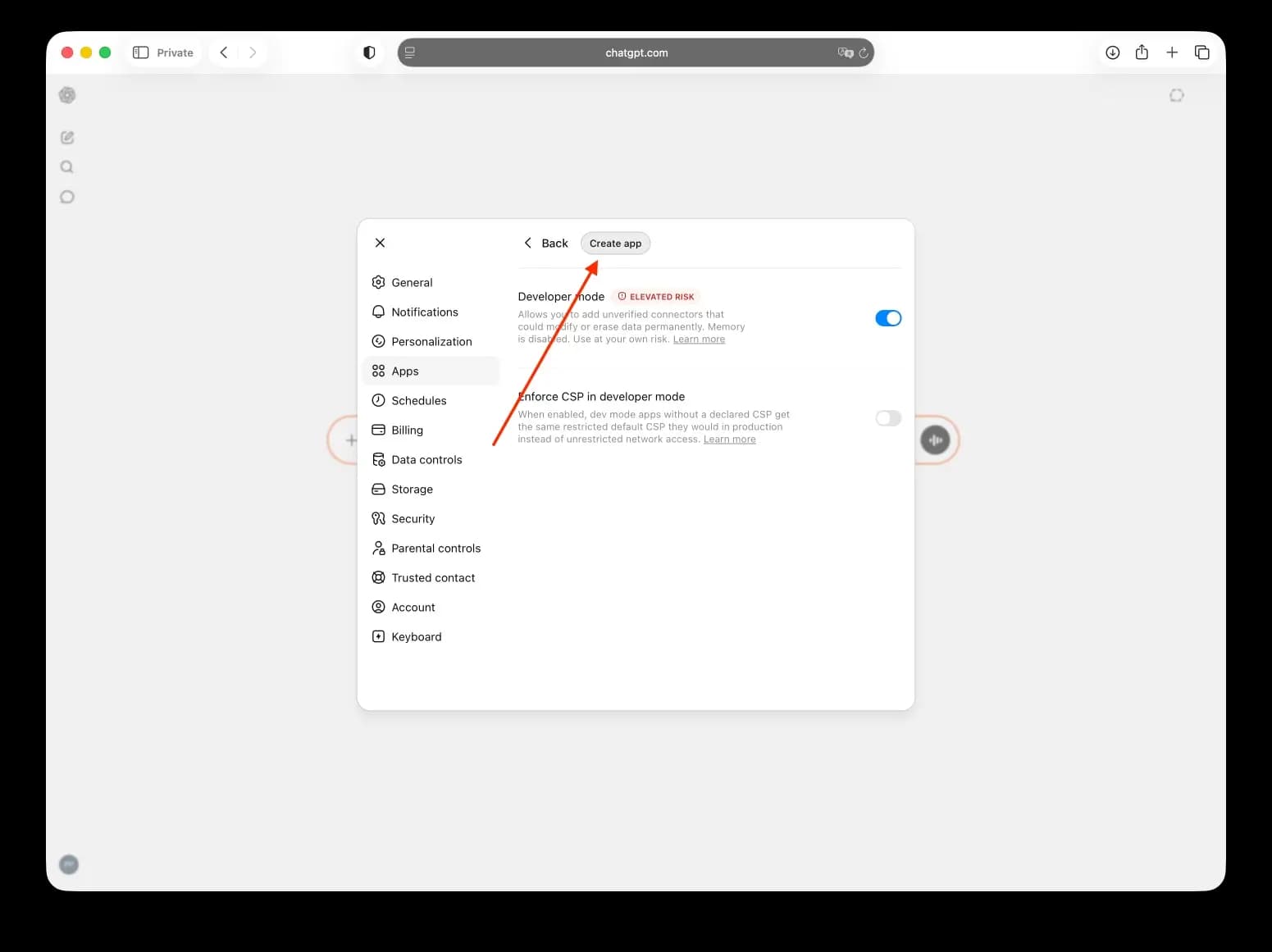
- Click Create app.
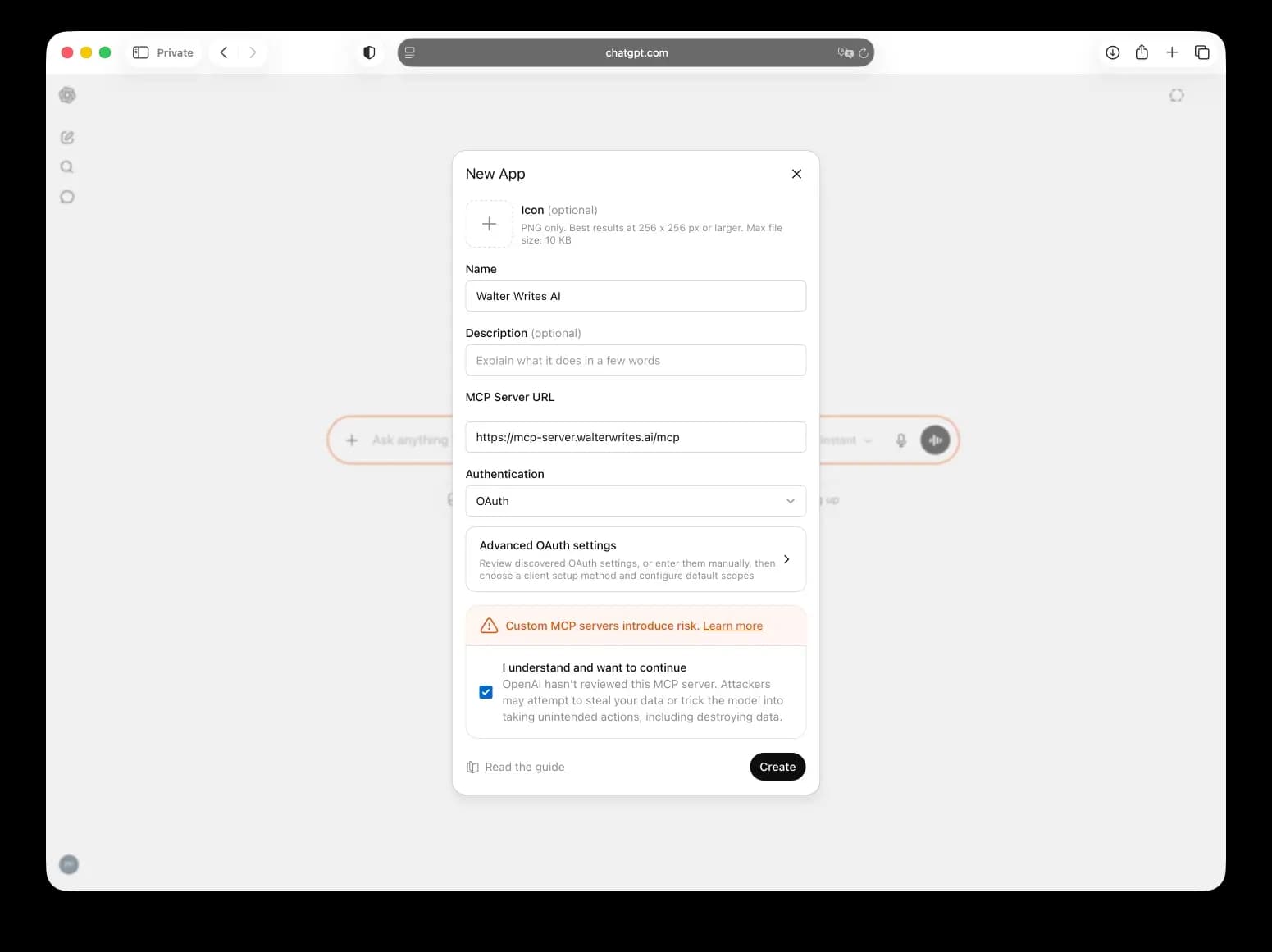
- Fill in the connector details:
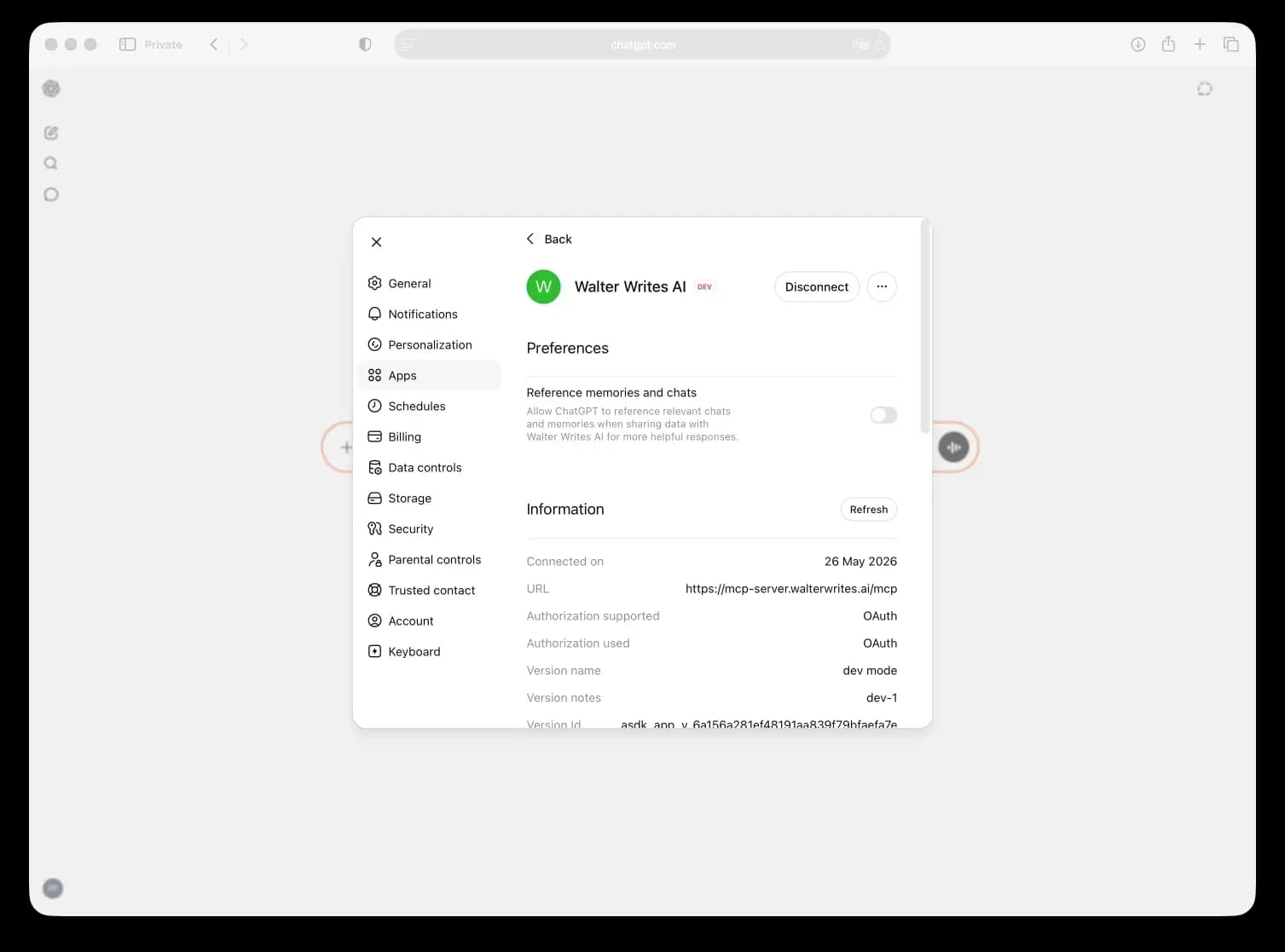
- Name: Walter Writes AI
- MCP Server URL:
https://mcp-server.walterwrites.ai/mcp- Authentication: OAuth
- Leave OAuth Client ID and Client Secret blank
- Select I trust this application and click Create.
- Sign in to your Walter Writes AI account.
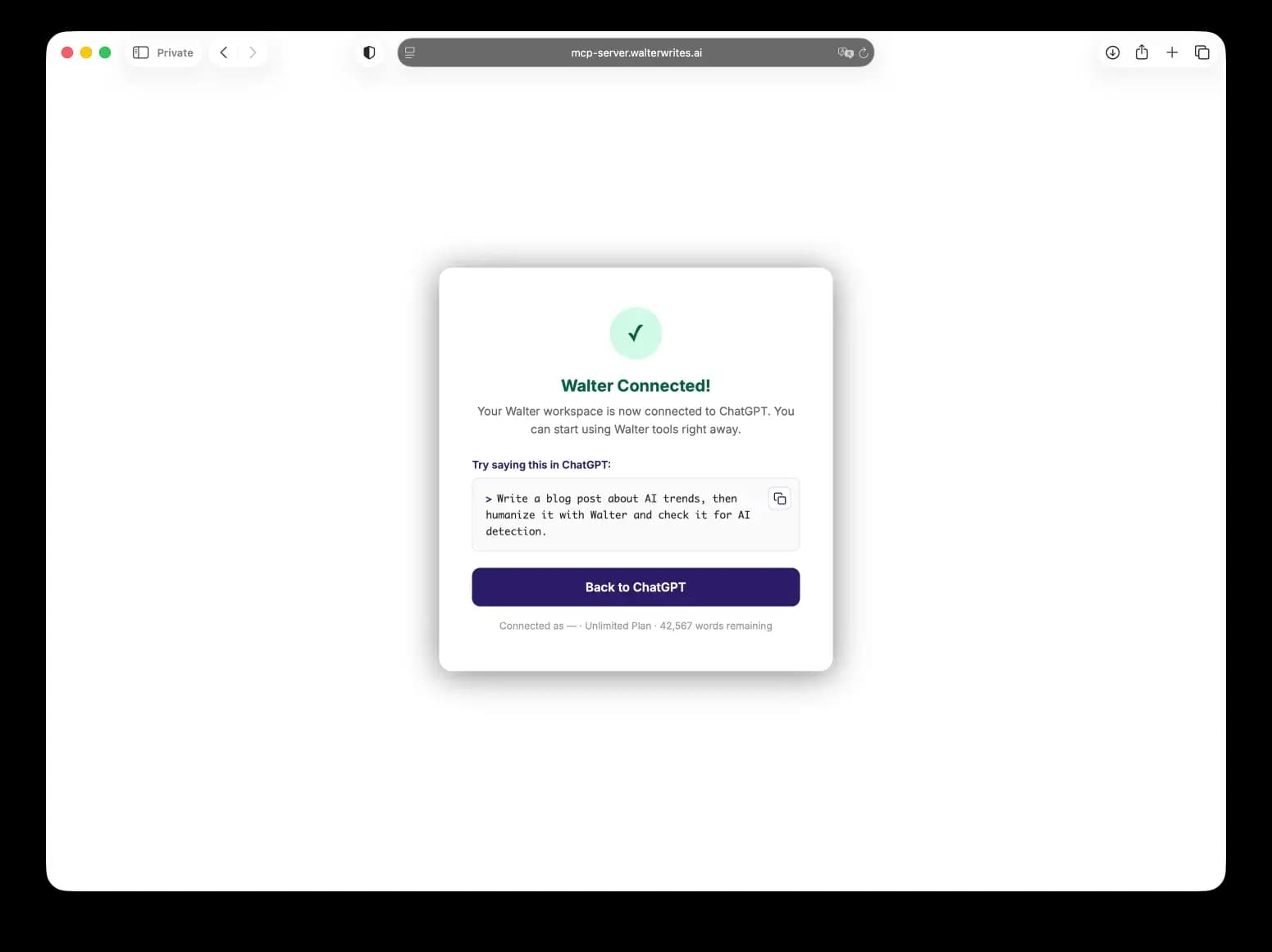
- Confirm the app shows as connected in ChatGPT.
Using the connector
- In chat, click + > More.
- Enable the Walter Writes connector you created.
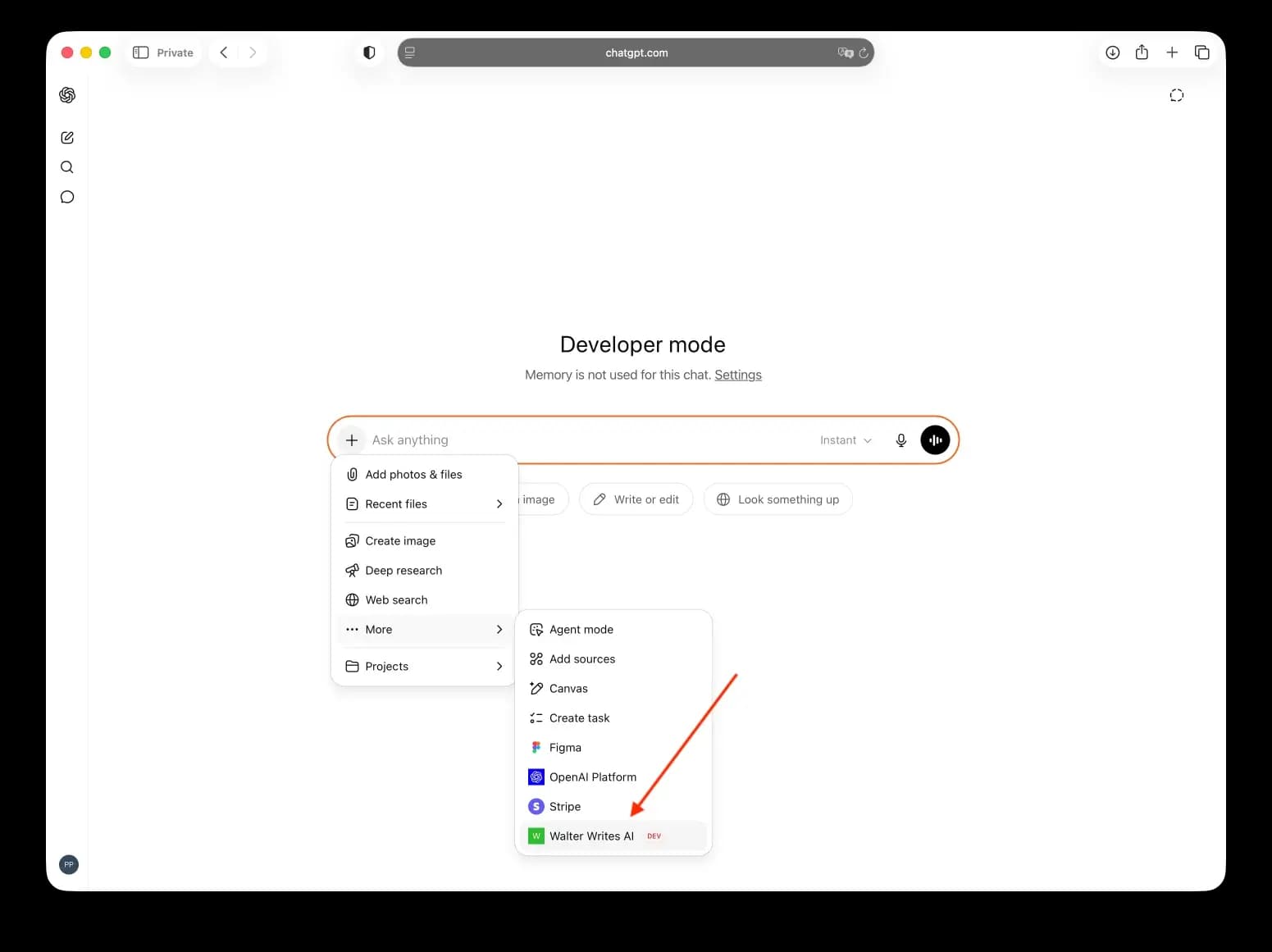
- Run your prompt and verify the requested Walter Writes tools/actions are selected.
Tip: If ChatGPT asks for permission on each call, review connector permissions in app settings and switch to a less restrictive mode only if appropriate for your workflow.