

Open WebUI
Connect Walter Writes AI to Open WebUI via MCP (Streamable HTTP) for text humanization and AI detection in your self-hosted chat.
Connect Walter Writes AI to Open WebUI for text humanization and AI detection in your self-hosted chat. See the Overview for full feature details and examples.
Connect to MCP via HTTP Streaming
In v0.6.31 Open WebUI added MCP (Streamable HTTP) server support, alongside the existing OpenAPI server integration. This lets you connect directly to an MCP server that exposes its functionality over a streaming HTTP endpoint. It supports Bearer token, session, and OAuth authentication if needed.
Note: This connection works only with the Open WebUI version run through Docker.
Setup guide
Once logged in to Open WebUI:
- Navigate to Admin Panel > Settings > Integrations.
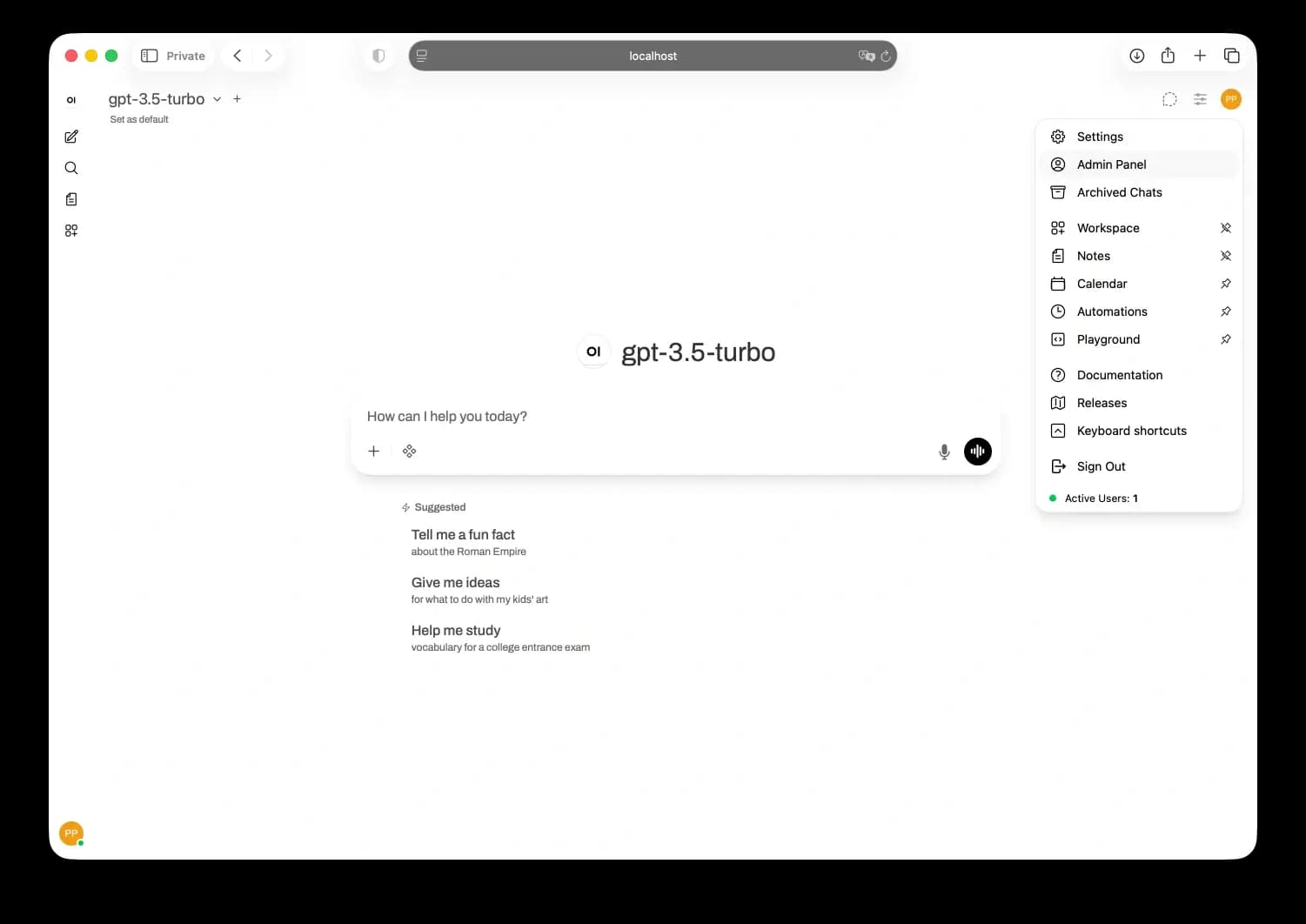
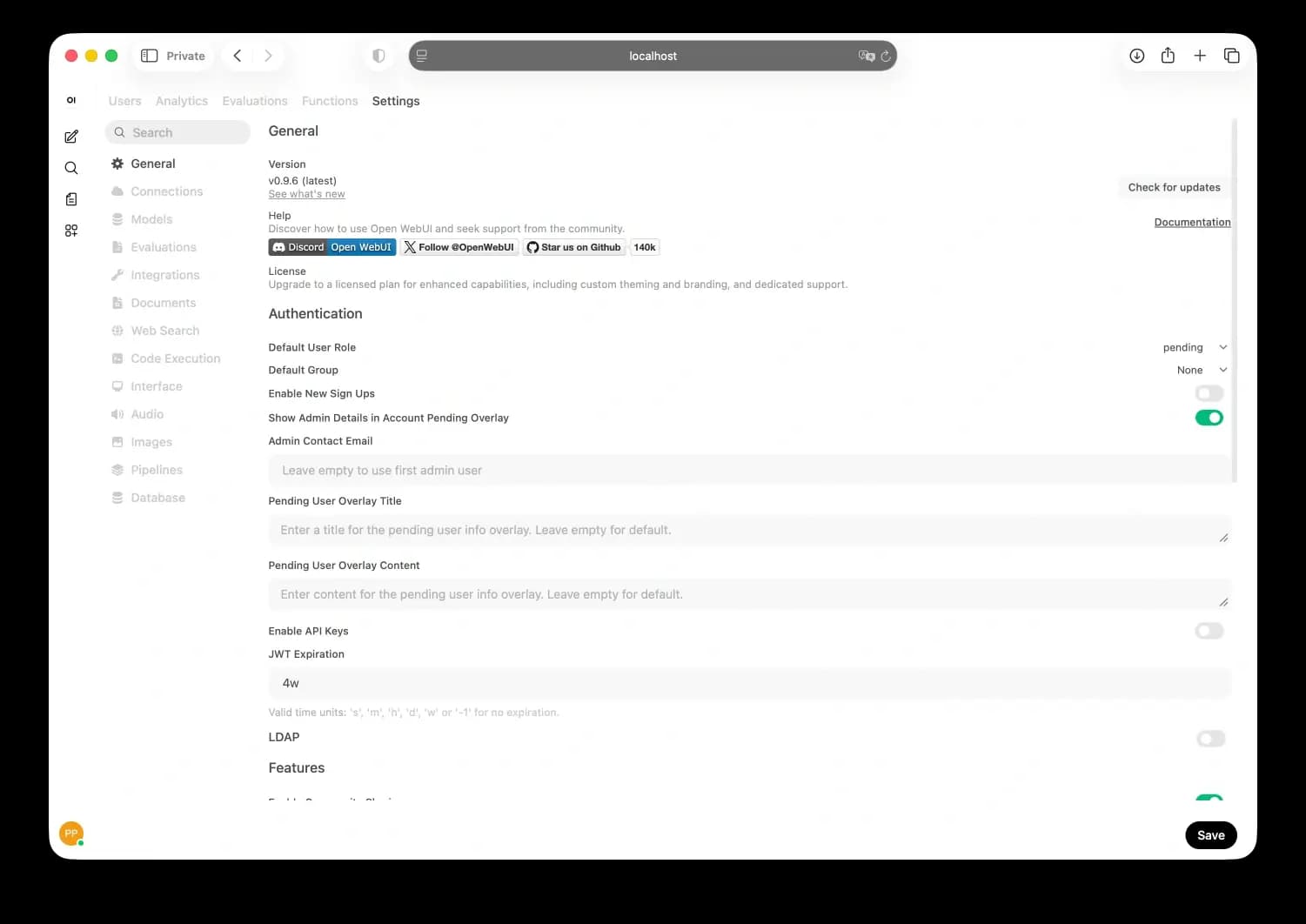
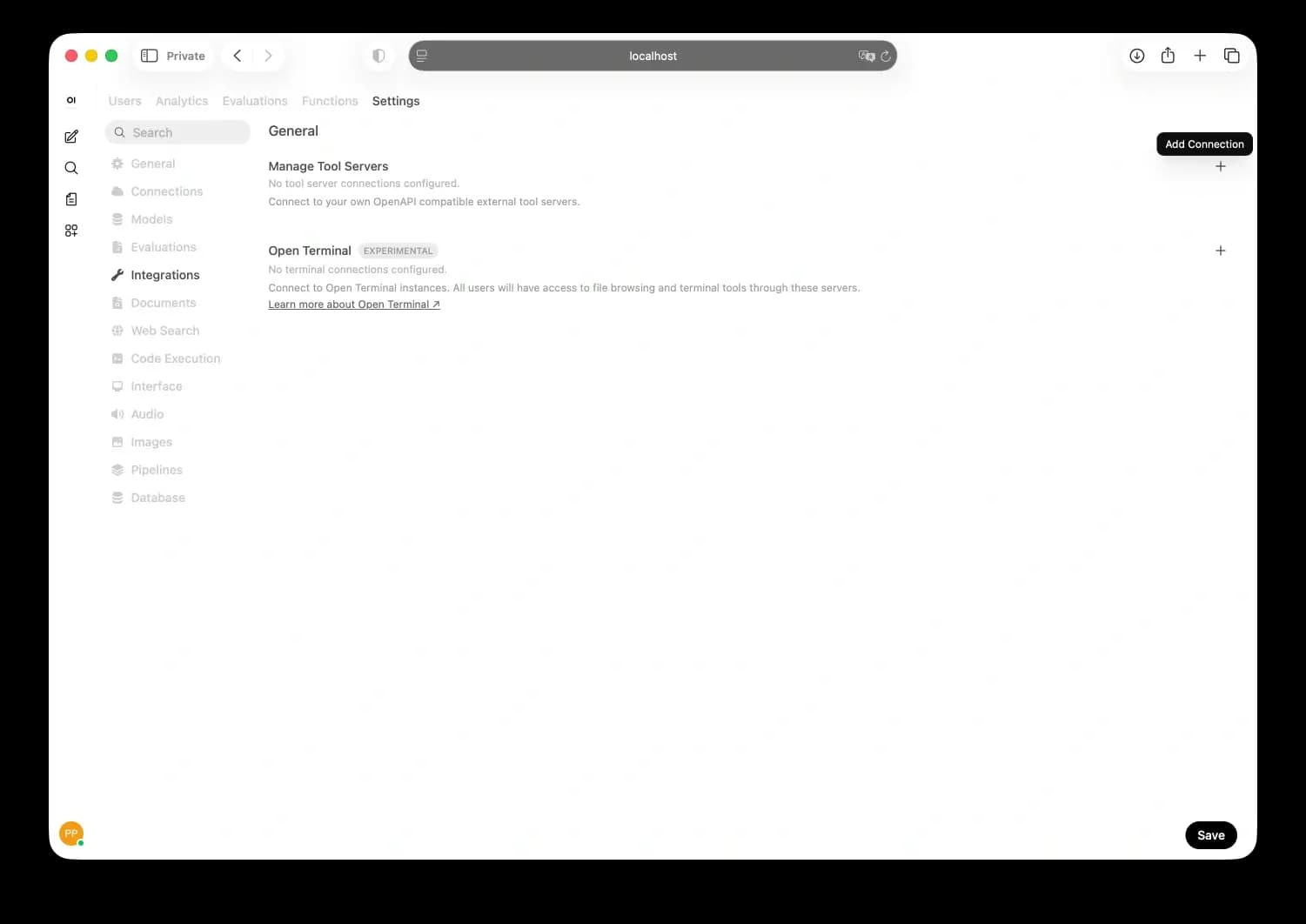
- Click "+" (Add Connection).
- Set the Type to MCP Streamable HTTP.
- Set Name to Walter Writes.
- Set ID to
walter_writes_mcp_http.- This is the string used in the logs to identify the MCP tool call.
- Set the URL to:
https://mcp-server.walterwrites.ai/mcp- Set Auth to OAuth 2.1.
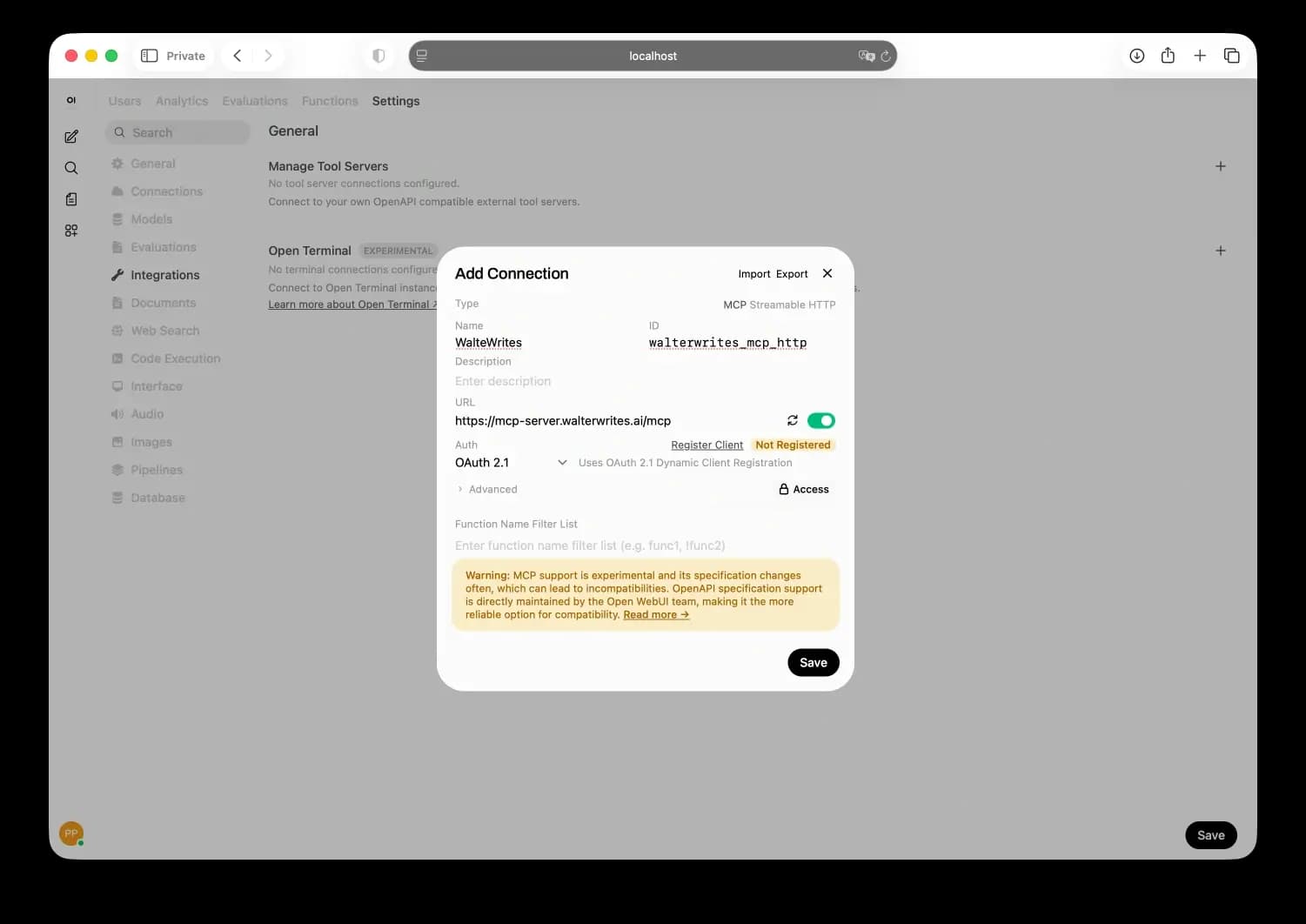
- Click Register Client.
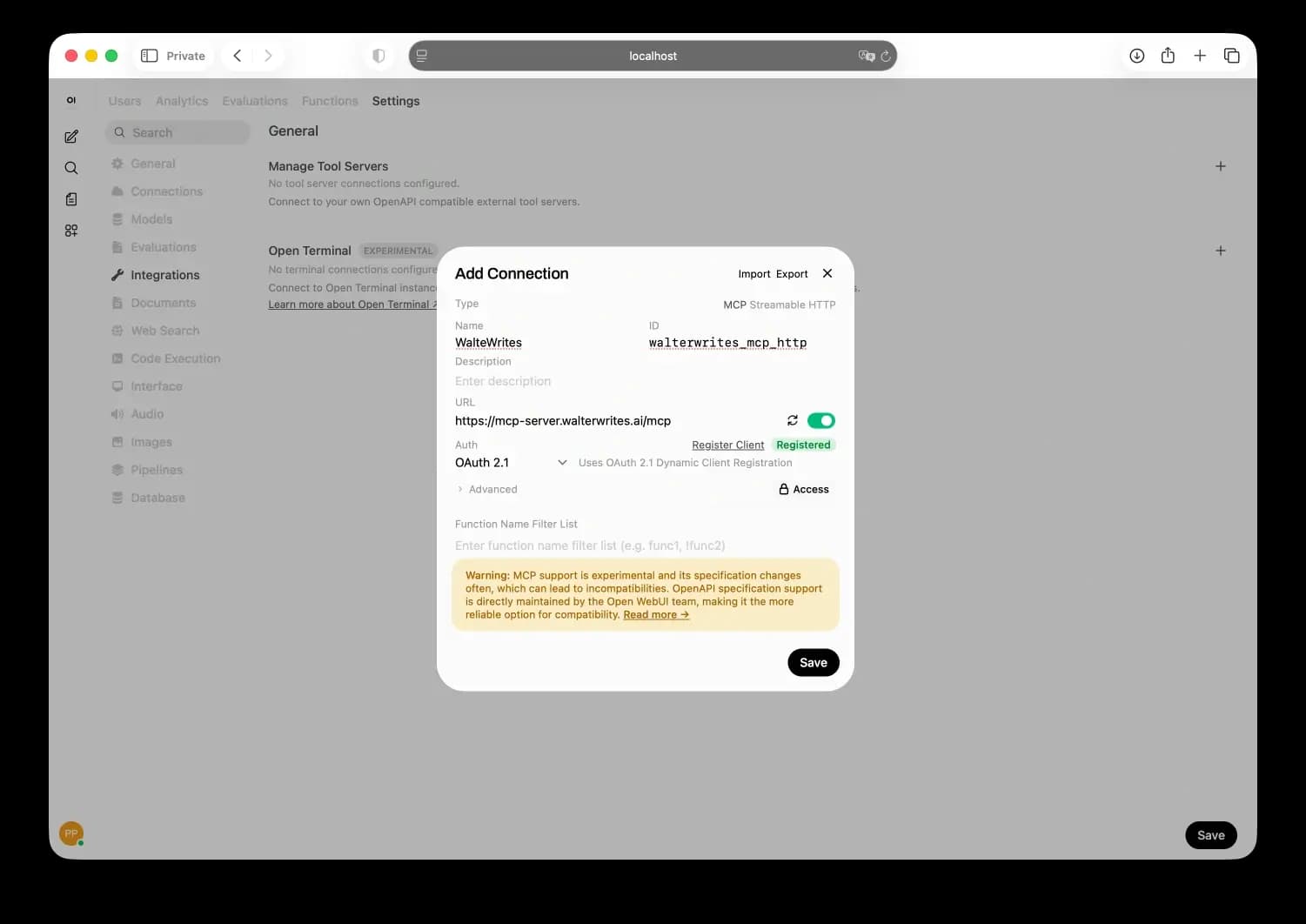
- Save the connection.
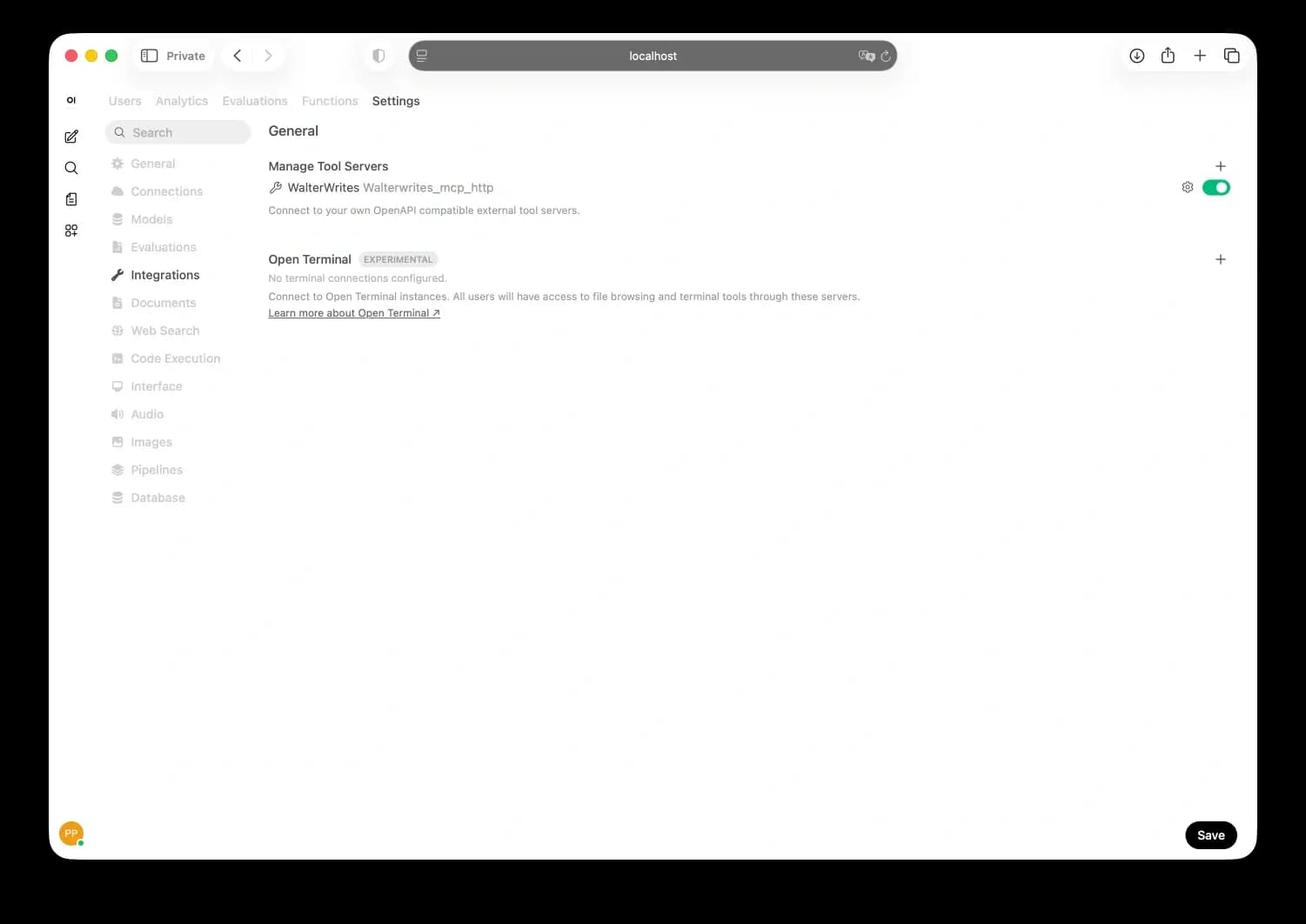
Authorize the MCP server
After saving, authorize the connection so Open WebUI can reach the Walter Writes tools:
- Open the connection you just created.
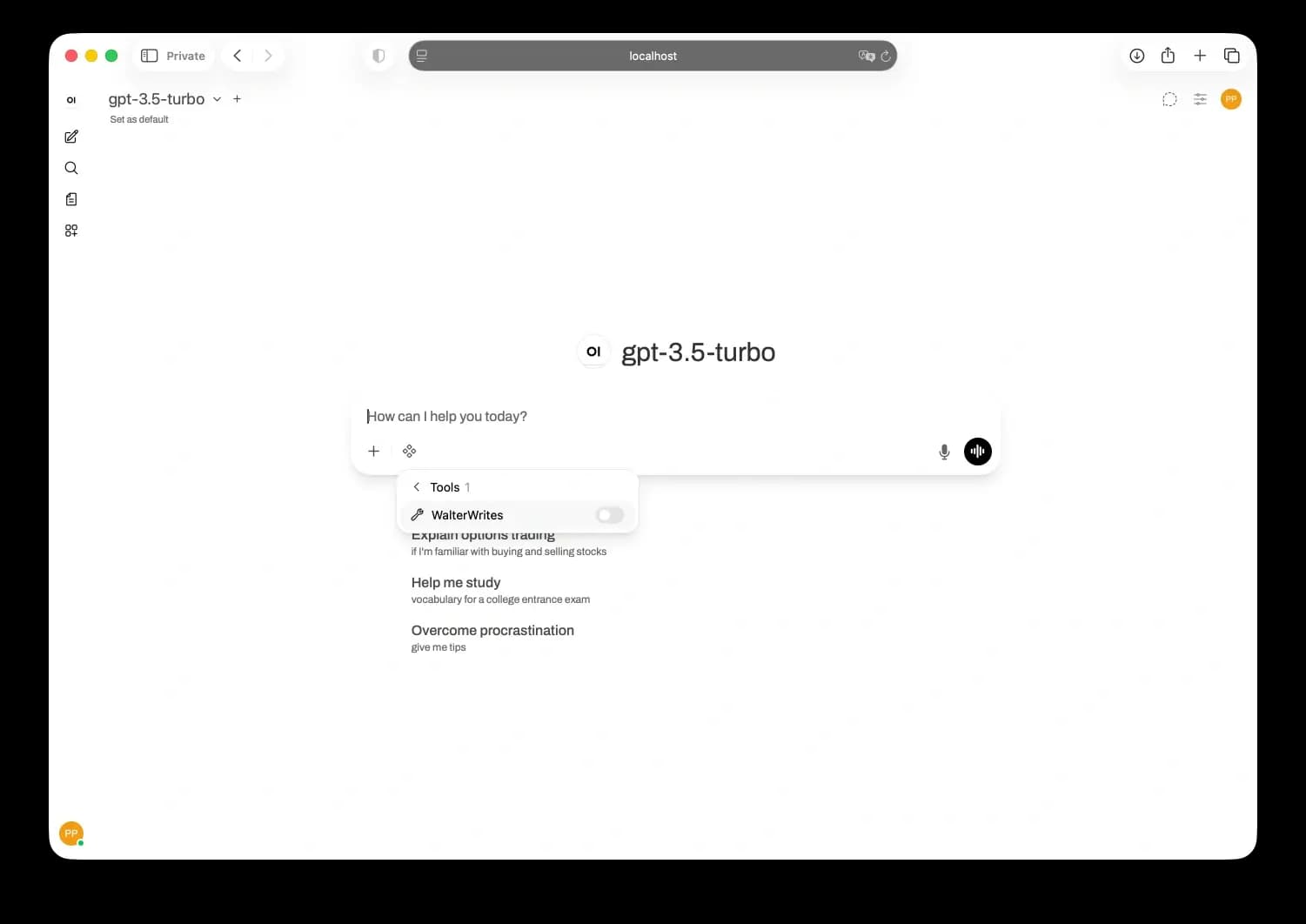
- Trigger the OAuth flow when prompted.
- Sign in to your Walter Writes AI account in the browser.
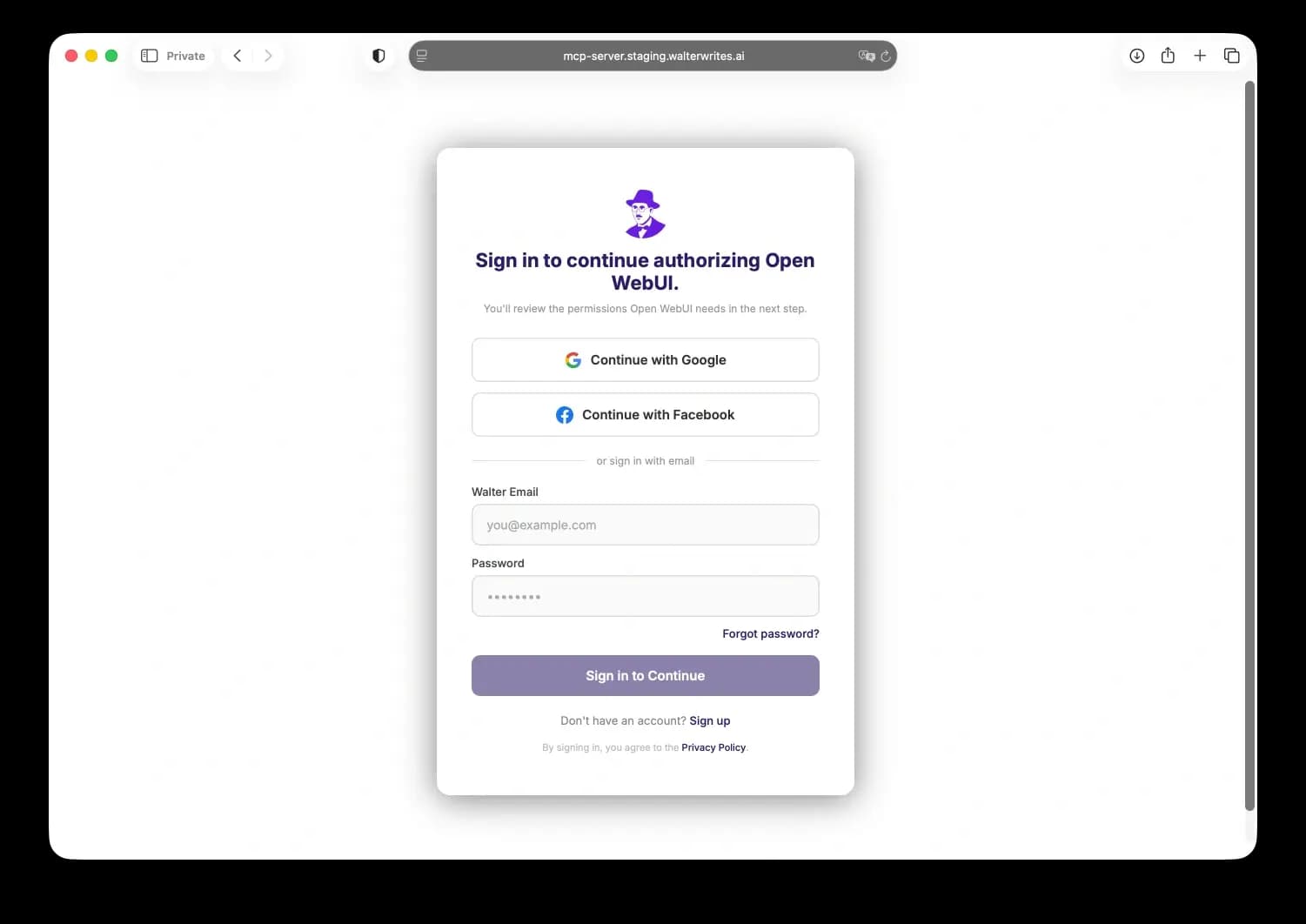
- Return to Open WebUI after a successful sign-in.
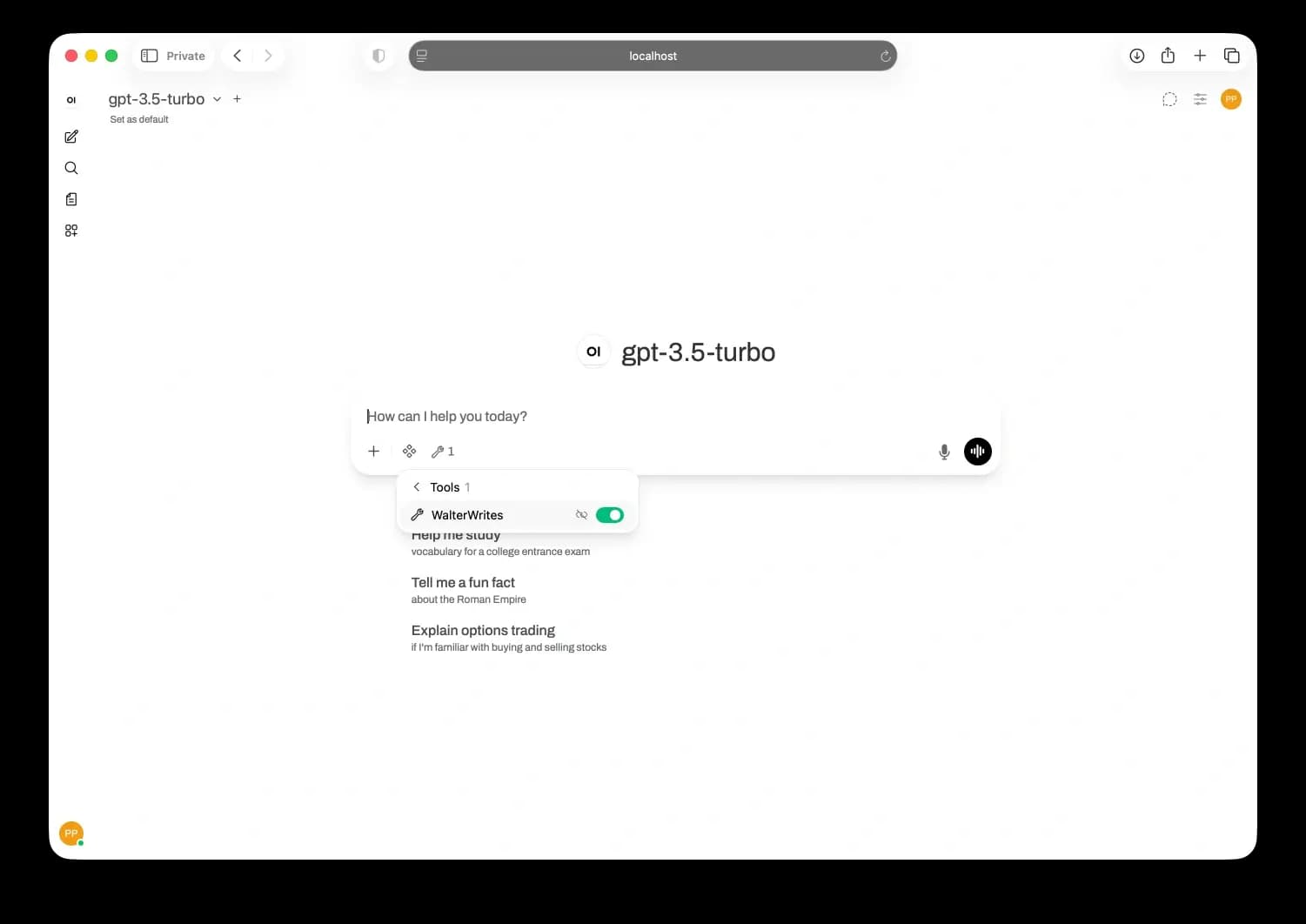
Using the tools
- In a chat, enable the Walter Writes AI via HTTP server for the model from the tools/MCP selector.
- Chat normally — the model calls the Walter Writes tools when needed.
Tip: If a tool is not invoked, mention the Walter Writes MCP connector and the exact action (humanize or detect) directly in your prompt.