

Claude Web/Desktop
Connect Walter Writes AI to Claude Web and Desktop via MCP connectors for text humanization and AI detection in chat.
Connect Walter Writes AI to Claude for text humanization and AI detection directly in chat. See the Overview for full feature details and examples.
Setup
There are two ways to connect the MCP server.
Method 1: Cloud Connectors Library
- Open Claude and go to the Customize section.
- Select Connectors and click the + (Add) button.
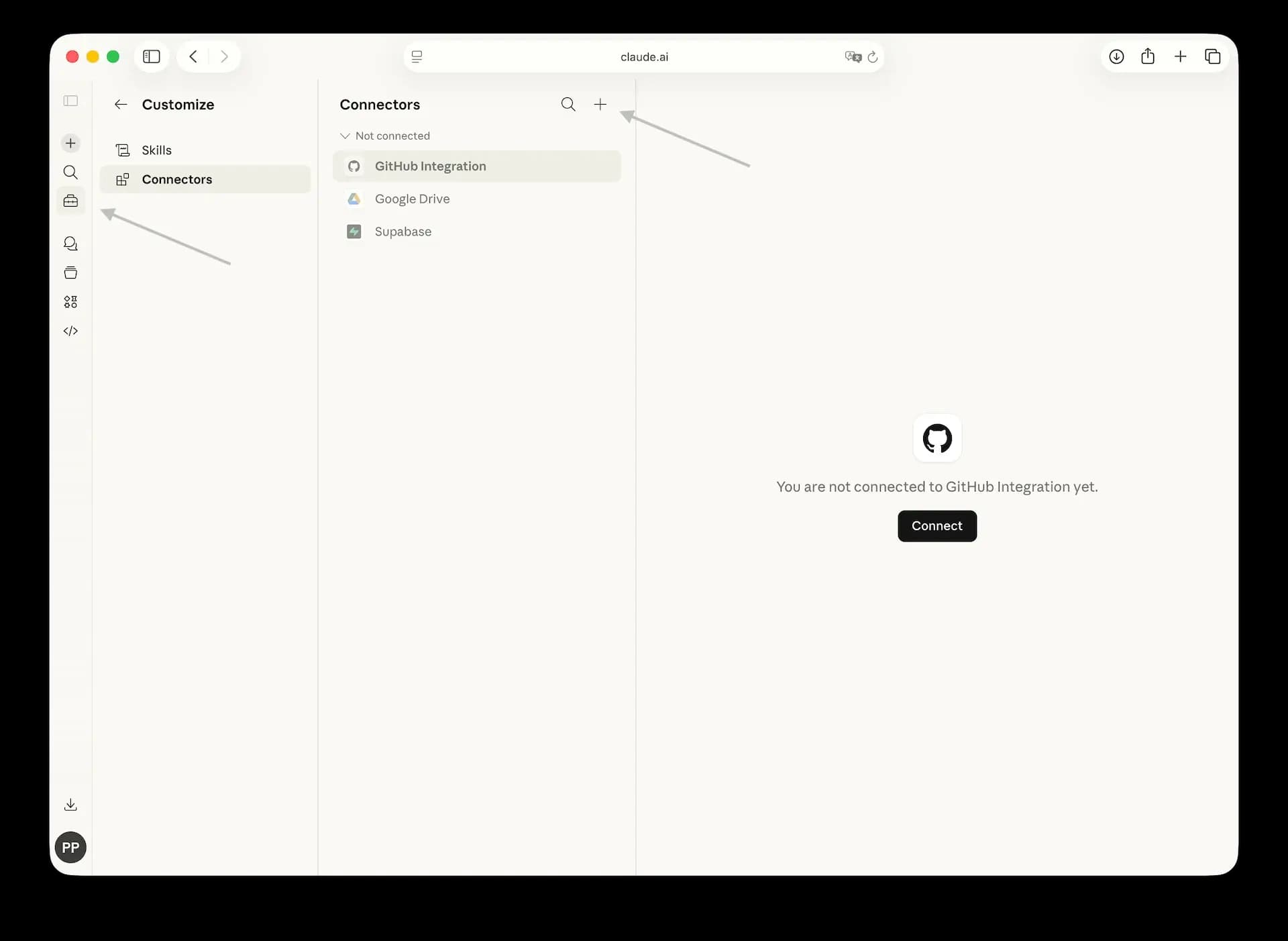
- Search for Walter Writes in the list of approved Claude connectors and click on the card.
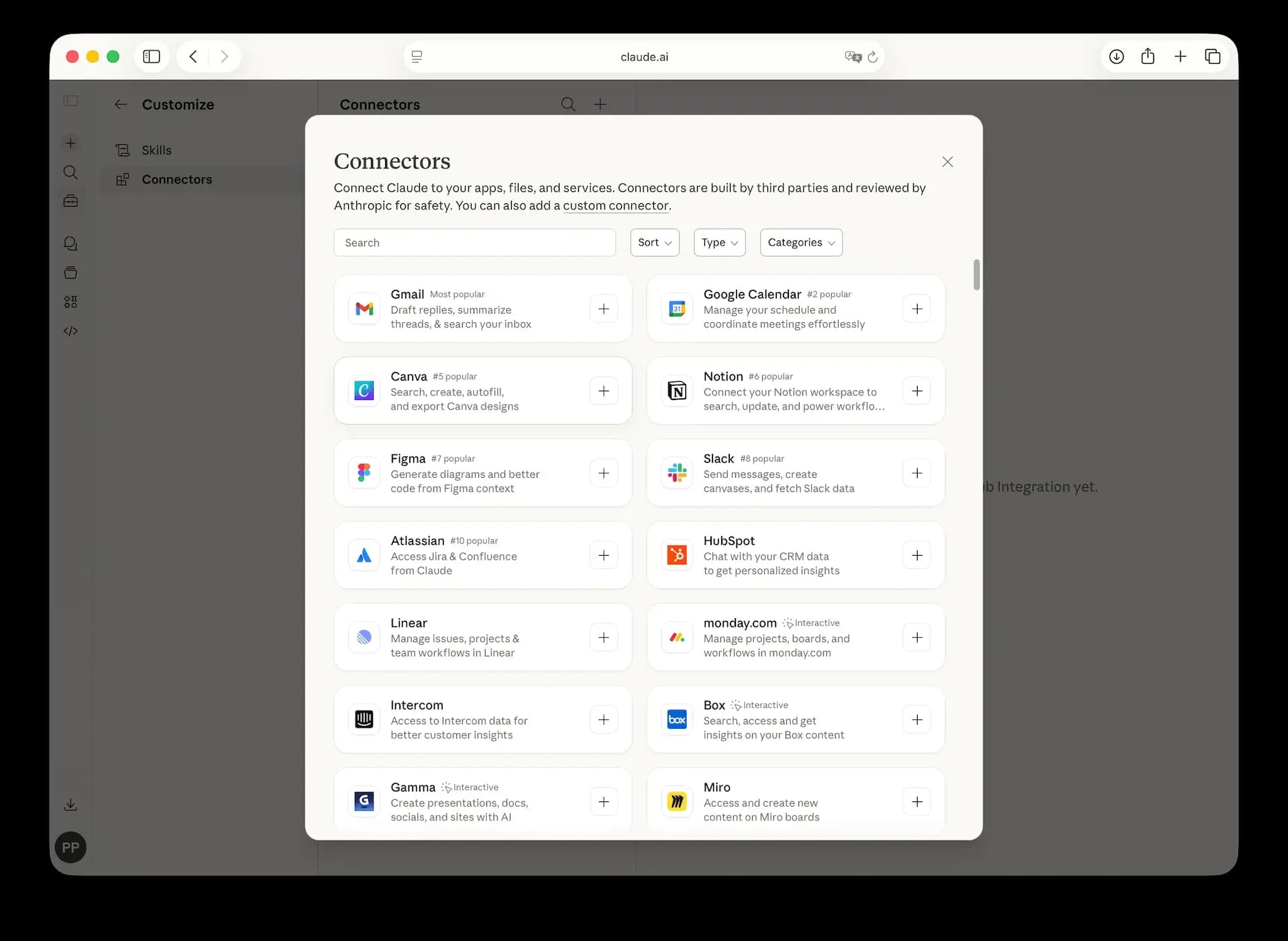
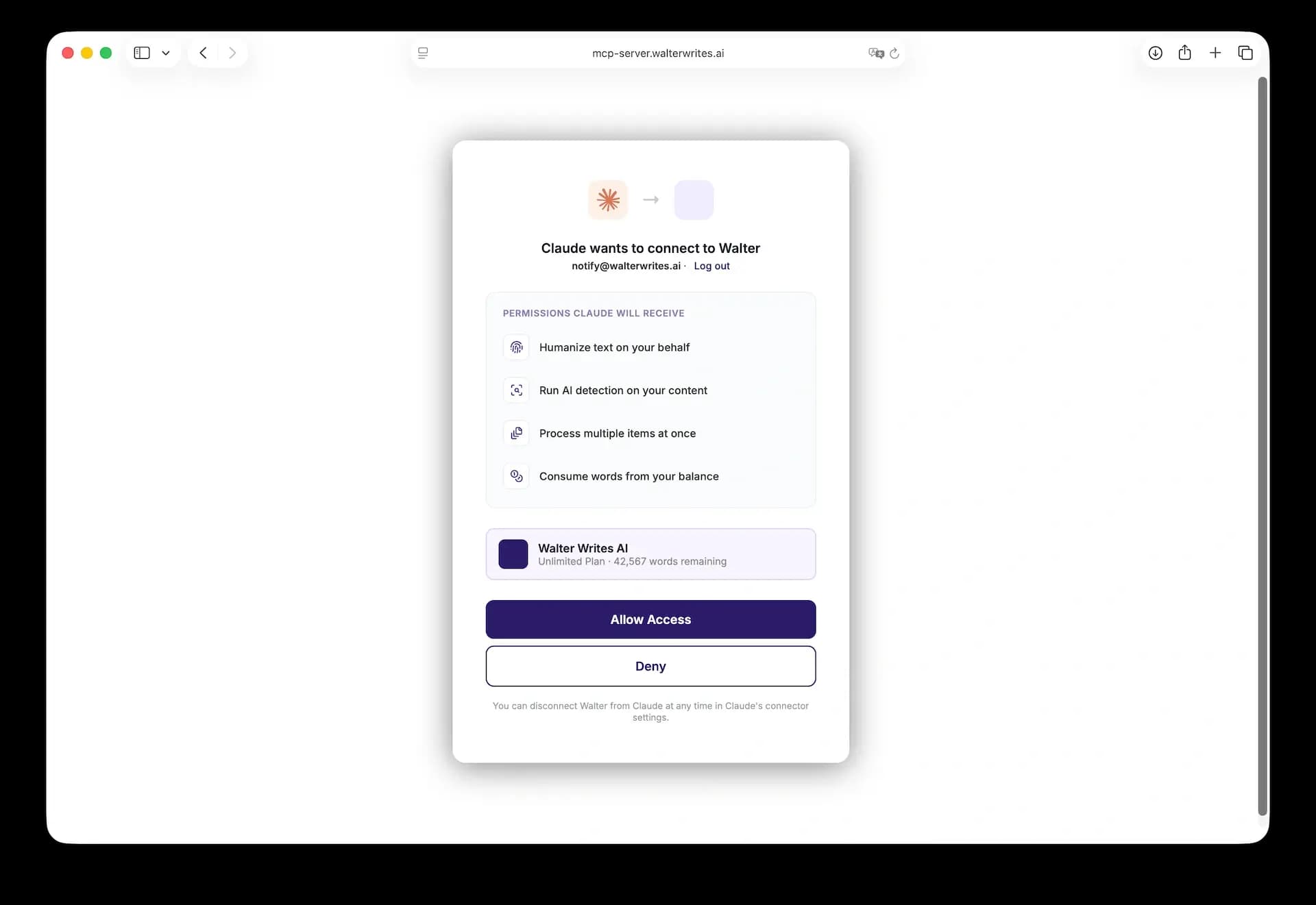
- Click Connect and authorize in your Walter Writes AI account.
- Once connected, you will see a confirmation message, and Walter Writes will appear in the list of your connectors.
Method 2: Custom Connector
If you cannot find the server in the connectors library, use this alternative method:
- Open Claude and go to Settings.
- Select Connectors and click Add custom connector.
- Enter the name Walter Writes AI and the connector URL:
https://mcp-server.walterwrites.ai/mcp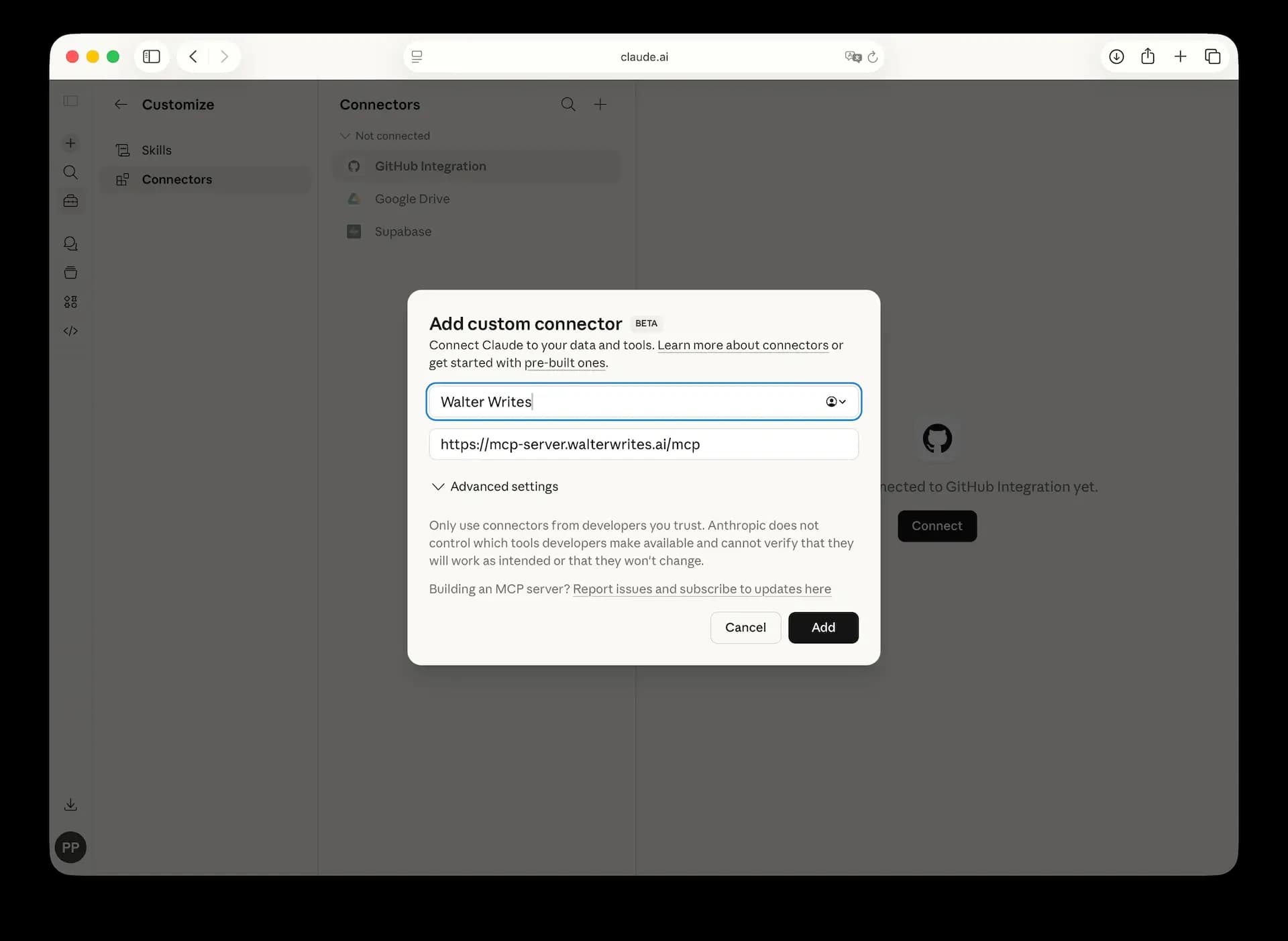
- After adding it, click Connect.
- In the authorization window, sign in to your Walter Writes AI account.
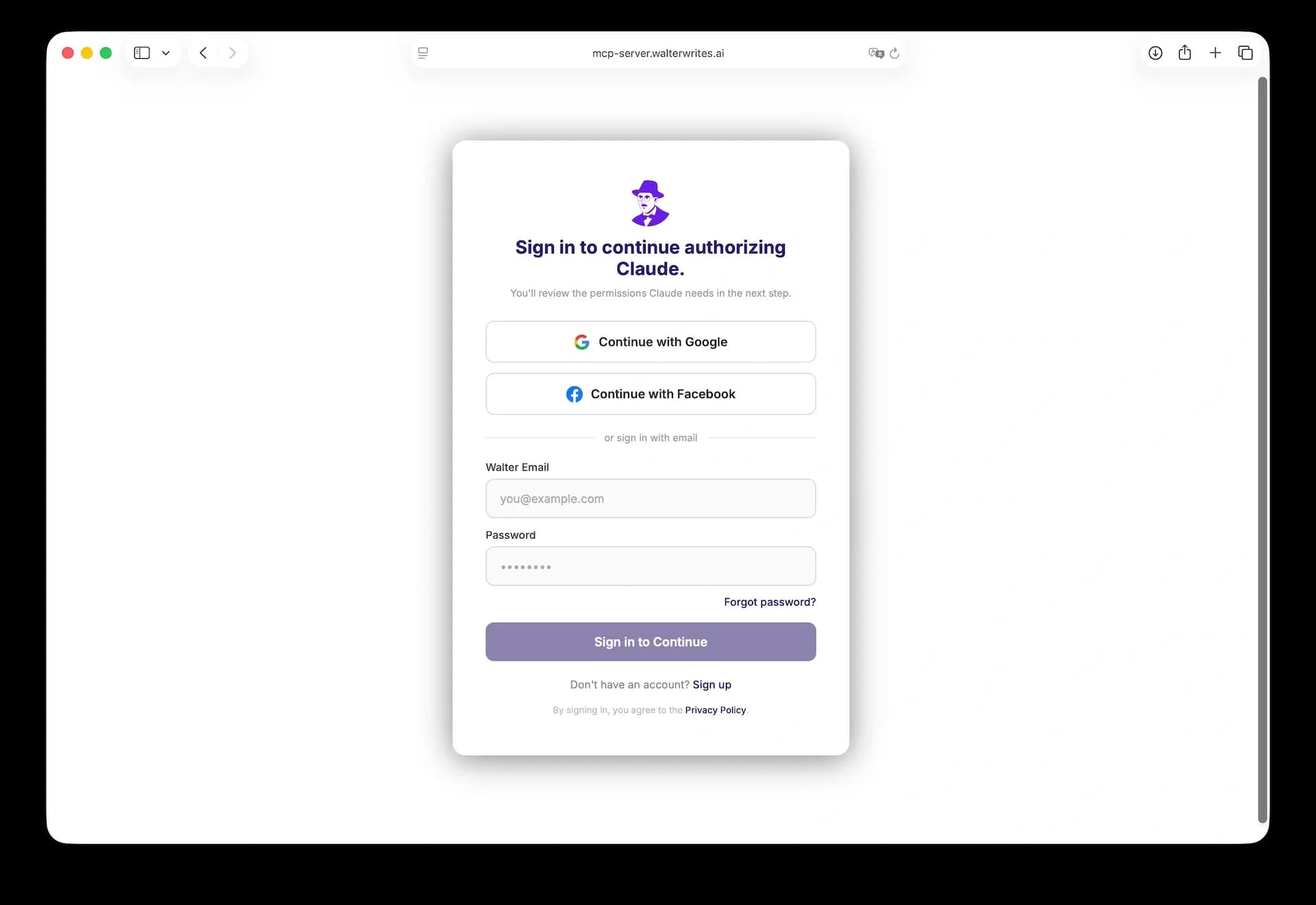
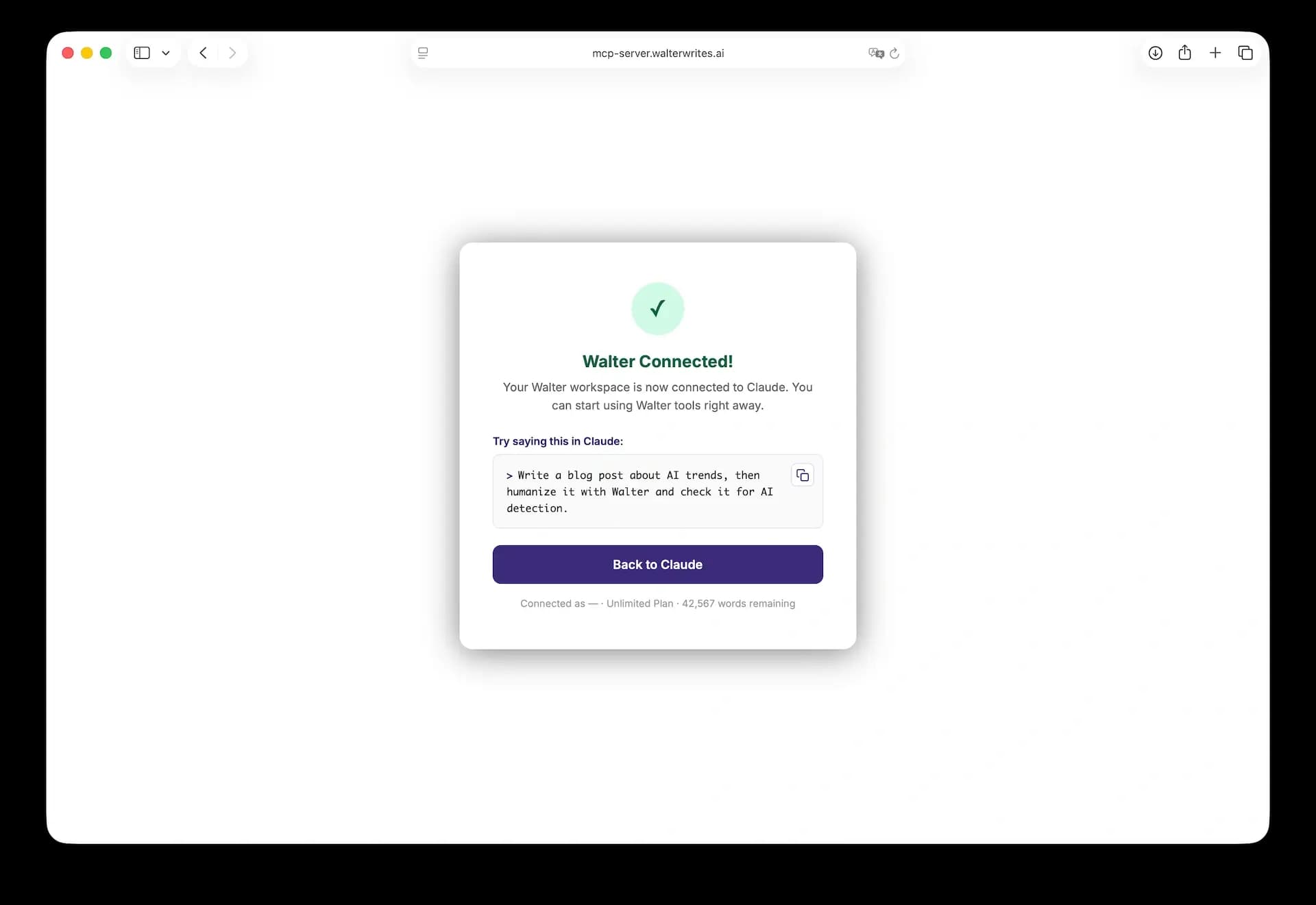
- After a successful connection, you will see a confirmation in Claude. Walter Writes AI tools will appear in the tool picker.
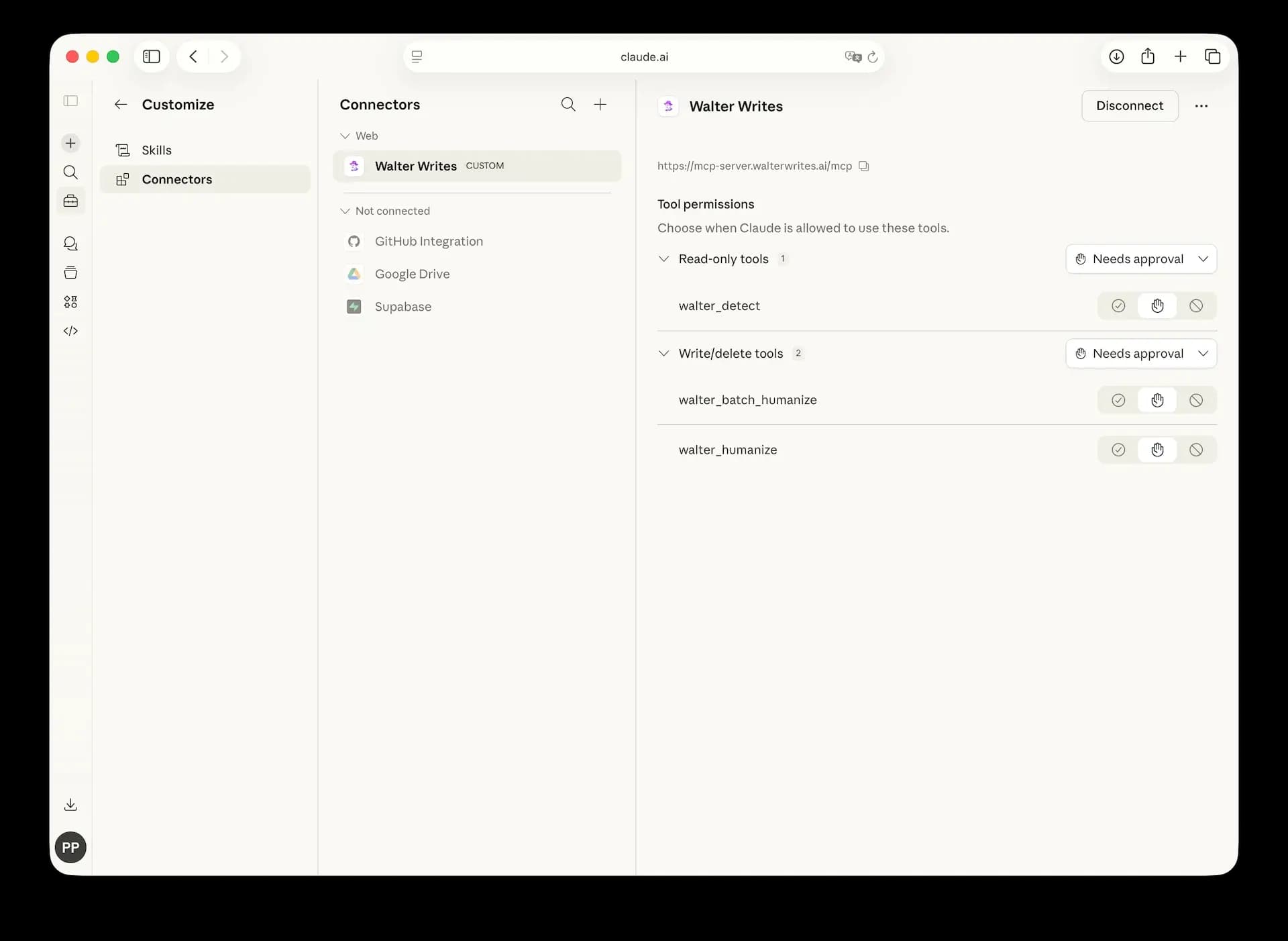
Permissions
- If the connector is set to ask for permission, Claude will request confirmation before running each action.
- To work without repeated confirmations, switch the connector access mode to automatic in connector settings.
Using Connectors
- Enable the connector in the chat settings dropdown.
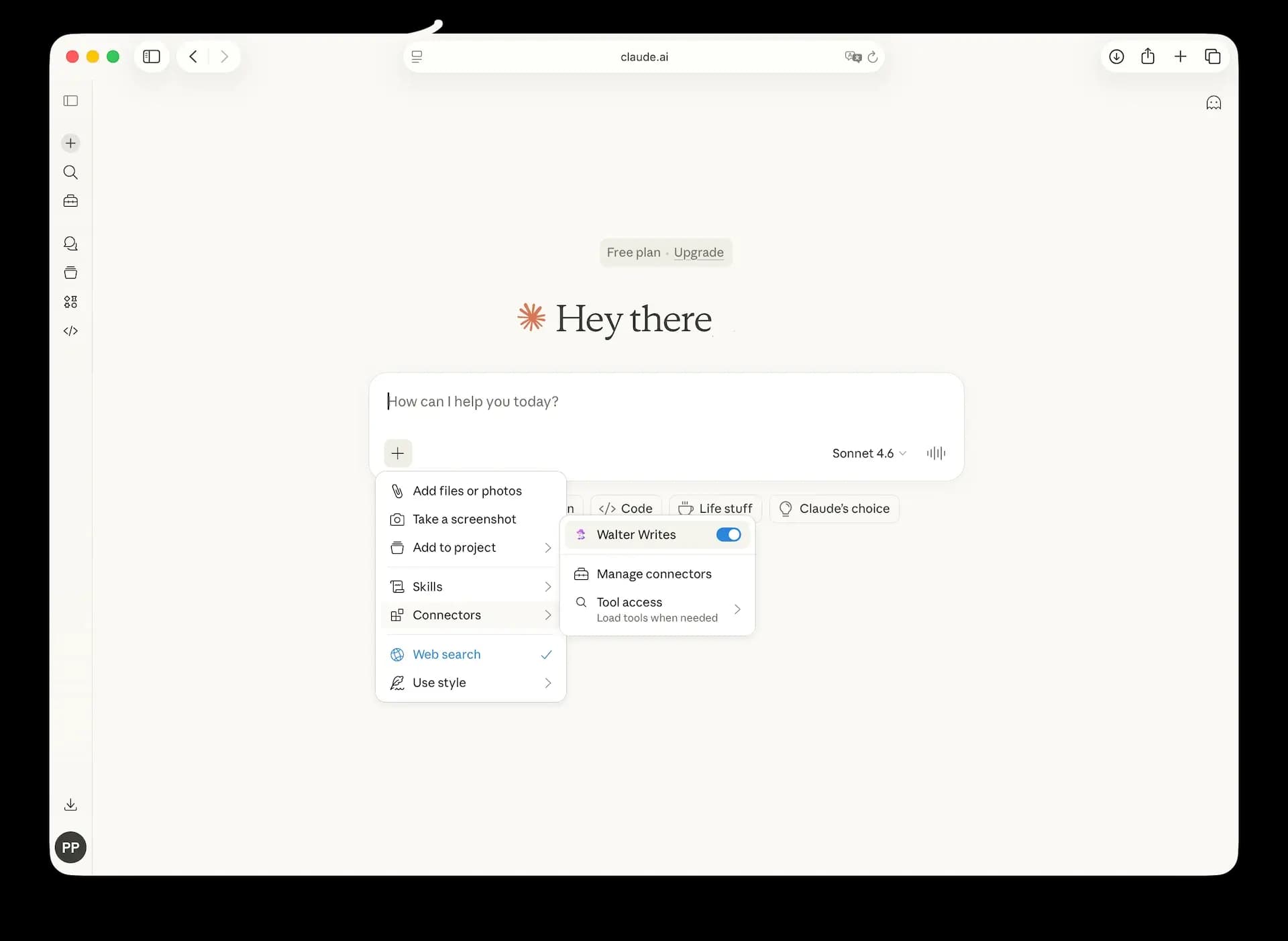
- Add a query, for example: "Write a 500-word blog post about AI trends and the future, then humanize it with Walter, then check for AI with Walter."
- Make sure all the tools mentioned are enabled before running queries.
Note: In Claude Connectors Settings, if the connector is set to Always ask permission, you will be prompted to grant permission before any query can return an answer. You can choose Allow unsupervised to grant the connector access automatically.